
How to make a payment via TrueMoney
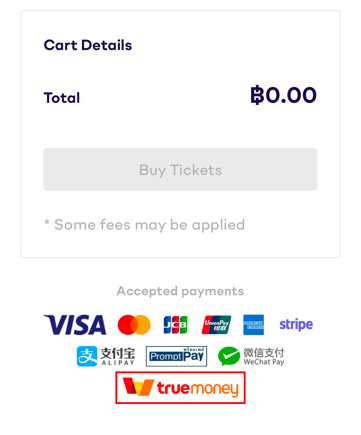
TrueMoney is an application provided by TrueMoney that is available on both iOS and Android. If you have a TrueMoney account and application, you can make a payment for your orders via TrueMoney. Please note that TrueMoney is available for only some events on Eventpop. If there is a TrueMoney logo on the payment page, you can make a payment via TrueMoney.
How to make a payment via TrueMoney
You can make a payment by TrueMoney on the website and application Eventpop by the steps below:
Remark :
- Please review the order detail and total amount before proceeding with the payment
- Payment Fee 3% (Vat excluded)
- After you selected the ticket type, filled in the info, and clicked on "Confirm Order", the system will take you to the payment page. Select "TrueMoney".
- Click on "Continue".
*Note: Please do not close or switch the TrueMoney application until the payment is successful. - The system will redirect you to your TrueMoney application and take you to the "Confirm Transaction" page.
- Select your preferred payment method (please review the total amount before confirming) and click on "Pay" with the specified amount.
After that, the system will automatically update the transaction within 15 minutes. Once the order status changes to "Paid", you will receive a confirmation email with an E-Ticket or Order Confirmation. In case you haven't received the email, you can check your E-Ticket or Order Confirmation in the "My Wallet" menu via the Eventpop website and application.
%20-%20EN-png.png?width=2328&height=3230&name=TrueMoney(mobile)%20-%20EN-png.png)
If you make a payment via Computer
After selecting the payment method as TrueMoney, you must use your camera to scan the QR Code shown on the screen. The system will automatically take you to the TrueMoney payment page to proceed with the transaction immediately.
%20-%20EN-png-1.png?width=2072&height=2668&name=TrueMoney%20(PC)%20-%20EN-png-1.png)