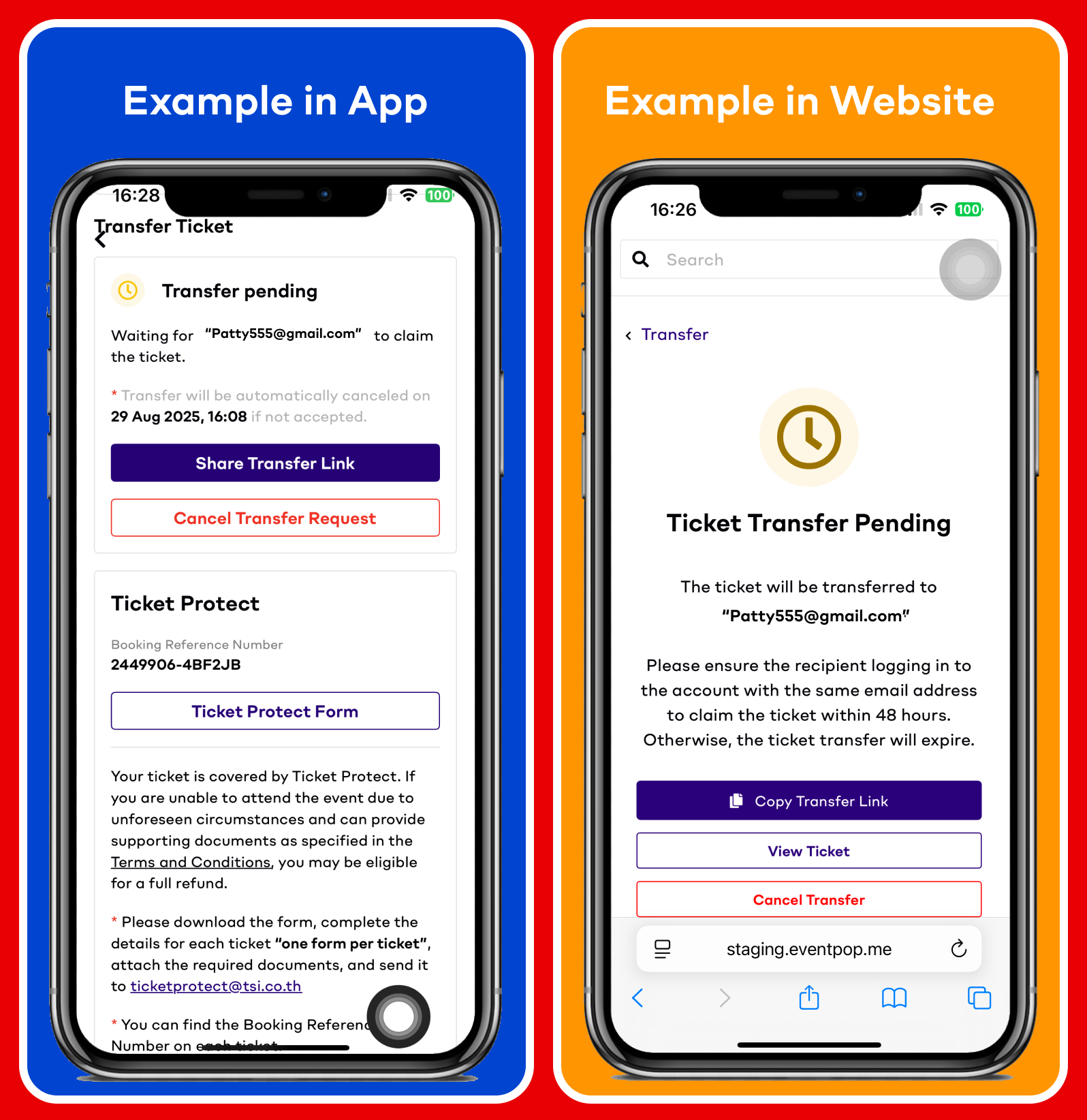
How to Cancel Ticket Transfer
You can cancel your ticket transfer on both Eventpop website and application by following these instructions.
How to Cancel Ticket Transfer via Website
- Go to the card you transferred the rights to by tapping on your "Profile Picture."
- Navigate to the "My Wallet" menu, then select "Tickets."
- Select "View Details" under the card transfer section.
- Select the "Cancel Transfer" button.
- Tap "Confirm" to cancel the card rights transfer. The system will cancel the transfer immediately. You can now use your E-Ticket to attend the event just as usual.
-png.png?width=700&height=953&name=Cancel%20Transfer%20E-Ticket%20-%20EN%20(Web)-png.png)
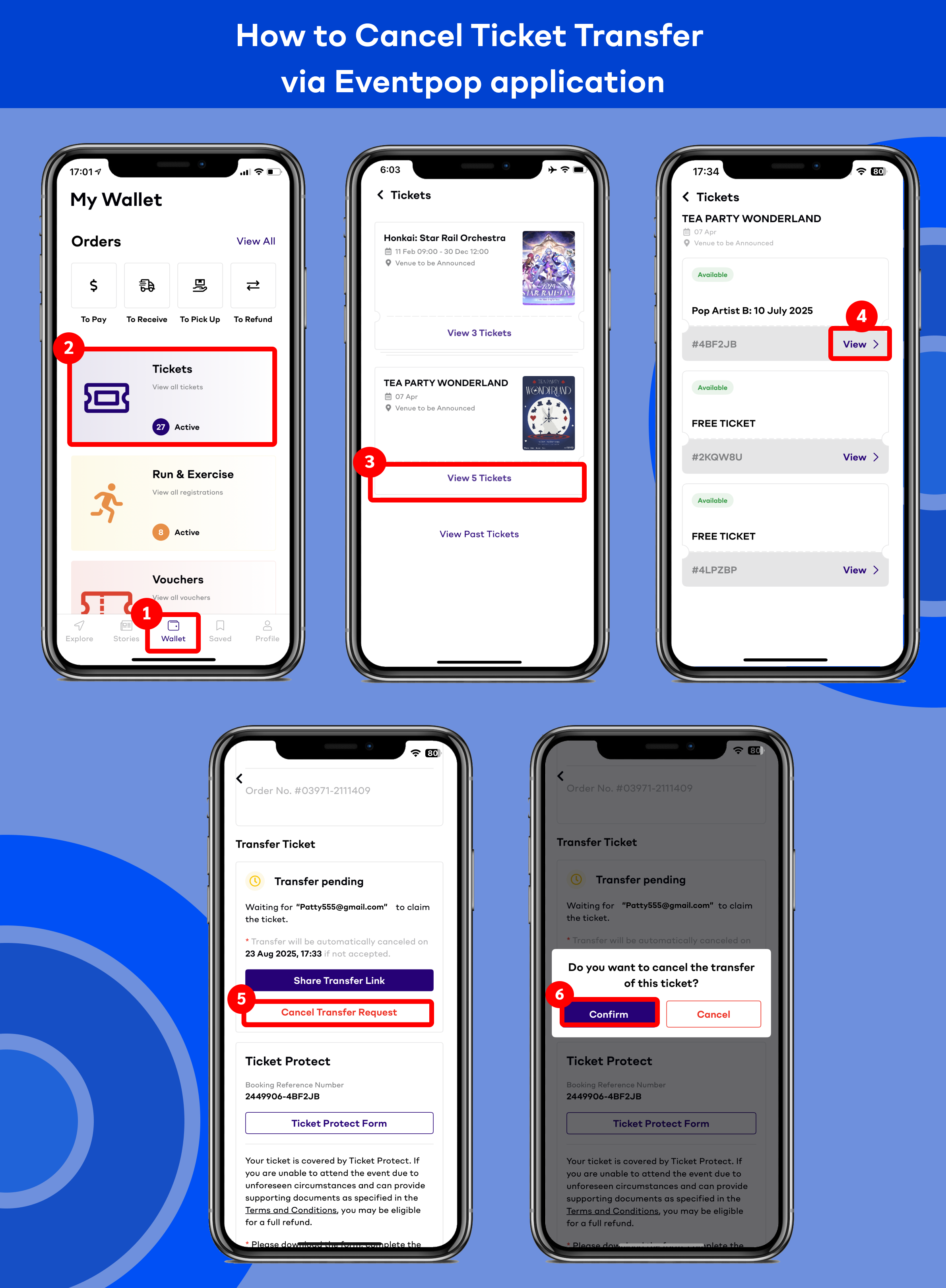
How to Cancel Ticket Transfer via Eventpop application
- Go to the "Wallet" menu.
- Select "Tickets."
- Select "View Card Details."
- Choose the ticket you previously transferred and press "View."
- Press "Cancel Transfer Request."
- Tap "Confirm" to cancel the card rights transfer. The system will cancel the transfer immediately.
You can now use your E-Ticket to attend the event just as usual.
How to check whether the ticket has been already transferred
1. Go to the E-Ticket that is pending transfer. Then, tap on "View Detail."
2. You can check the status here. If your ticket is successfully transferred, the status will change to "Received."If the status is "Pending," it means that the ticket recipient hasn't accepted the invitation yet.