
Problems and Questions about Bank Transfer
How long does the organizer take to approve the payment?
In case you make a payment via Bank Transfer, the money will be directly transferred to the organizer's bank account. Therefore, we do not have rights to approve your payment since we have no information about the transaction. Normally, if you have already confirmed the payment, the system will automatically reserve your tickets/seats. Your order status will be changed to " Verified Bank Transfer" and send your payment confirmation to the organizer for approving.
The duration of approving payment and confirming the order depends on the organizer who is the owner of the bank account. If you find that your order takes too long to be approved, you can directly contact the organizer to inquire about the status of your order.
I transferred money, but didn't confirm bank transfer in the specific time. What should I do?
If you don't confirm the payment within the specific time, your order will be deleted. However, you are able to make a new order and attach the payment slip. If the sale of the event is closed or ticket is sold out, please contact our Customer Support and provide information as follows:
1. Order number/First - Last name/Email/Phone number
2. A photo of payment slip, date and time of payment
We will send you order number and payment information to the organizer to check your transaction and make a decision. If the organizer allows us to give you ticket, we will update your order information on the system. On the other hand, if the organizer does not allow us to do so, we will contact you back to tell you about the refund process.
I transferred the incorrect amount of money. What should I do?
In case you make a payment via Bank Transfer, the money will be directly transferred to the organizer's bank account. There are two mistakes that often happen as follows:
The transferred amount is over the actual amount.
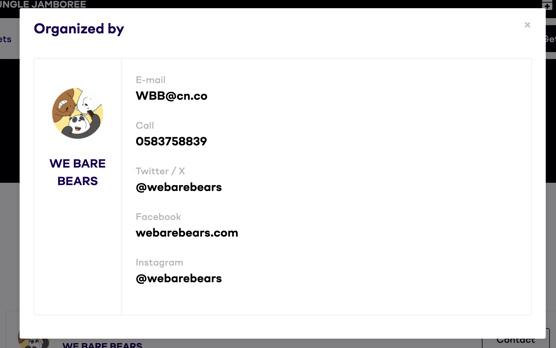
You have to directly contact the organizer to request a refund. The organizer's contact information will be on the end of the event page. You can click on "Contact" to see the contact information.

The transferred amount is lower than the actual amount
We suggest you transfer additional money, collage your two slip images together, then upload this image in the "Confirm Payment" process instead. The organizer will check the total amount of both two transactions and approve your order.
I attached wrong payment slip file. What should I do?
If you have already confirmed bank transfer but attached the wrong payment slip file, you can attach a new payment slip file as follows:
1. Go to My Wallet menu. Then go to "Orders" and click on the order you want to change the payment slip file. Click on "Upload Bank Transfer".
2. You can edit the transfer confirmation. Please fill in the details of the transfer and attach the correct slip file. Then, click on "Confirm Bank Transfer" to confirm the correction.
.png?width=2316&height=3212&name=Edit%20Bank%20Transfer%20-%20EN%20(Mob-site).png)
Problems and Questions about Bank Transfer
How long does the organizer take to approve the payment?
In case you make a payment via Bank Transfer, the money will be directly transferred to the organizer's bank account. Therefore, we do not have rights to approve your payment since we have no information about the transaction. Normally, if you have already confirmed the payment, the system will automatically reserve your tickets/seats. Your order status will be changed to " Verified Bank Transfer" and send your payment confirmation to the organizer for approving.
The duration of approving payment and confirming the order depends on the organizer who is the owner of the bank account. If you find that your order takes too long to be approved, you can directly contact the organizer to inquire about the status of your order.
I transferred money, but didn't confirm bank transfer in the specific time. What should I do?
If you don't confirm the payment within the specific time, your order will be deleted. However, you are able to make a new order and attach the payment slip. If the sale of the event is closed or ticket is sold out, please contact our Customer Support and provide information as follows:
1. Order number/First - Last name/Email/Phone number
2. A photo of payment slip, date and time of payment
We will send you order number and payment information to the organizer to check your transaction and make a decision. If the organizer allows us to give you ticket, we will update your order information on the system. On the other hand, if the organizer does not allow us to do so, we will contact you back to tell you about the refund process.
I transferred the incorrect amount of money. What should I do?
In case you make a payment via Bank Transfer, the money will be directly transferred to the organizer's bank account. There are two mistakes that often happen as follows:
The transferred amount is over the actual amount.
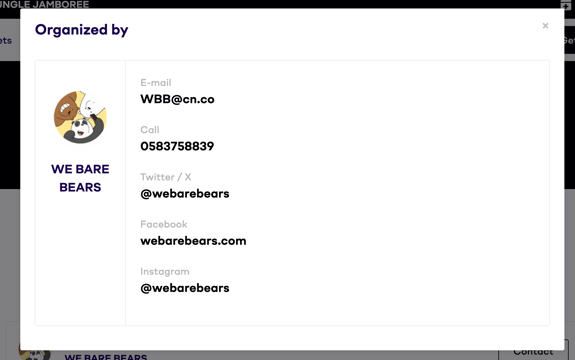
You have to directly contact the organizer to request a refund. The organizer's contact information will be on the end of the event page. You can click on "Contact" to see the contact information.

The transferred amount is lower than the actual amount
We suggest you transfer additional money, collage your two slip images together, then upload this image in the "Confirm Payment" process instead. The organizer will check the total amount of both two transactions and approve your order.
I attached wrong payment slip file. What should I do?
If you have already confirmed bank transfer but attached the wrong payment slip file, you can attach a new payment slip file as follows:
1. Go to My Wallet menu. Then go to "Orders" and click on the order you want to change the payment slip file. Click on "Upload Bank Transfer".
2. You can edit the transfer confirmation. Please fill in the details of the transfer and attach the correct slip file. Then, click on "Confirm Bank Transfer" to confirm the correction.
-1.png?width=769&height=1517&name=Edit%20Bank%20Transfer%20-%20EN%20(App)-1.png)