
How to Upgrade Seating Ticket
A seating ticket upgrade is available if the event organizer allows customers to change their zone or seat through the system. The ticket upgrade can only be made to a higher-priced zone or seat. To proceed with this, please follow the steps below:
How to Upgrade Seating Ticket via Website
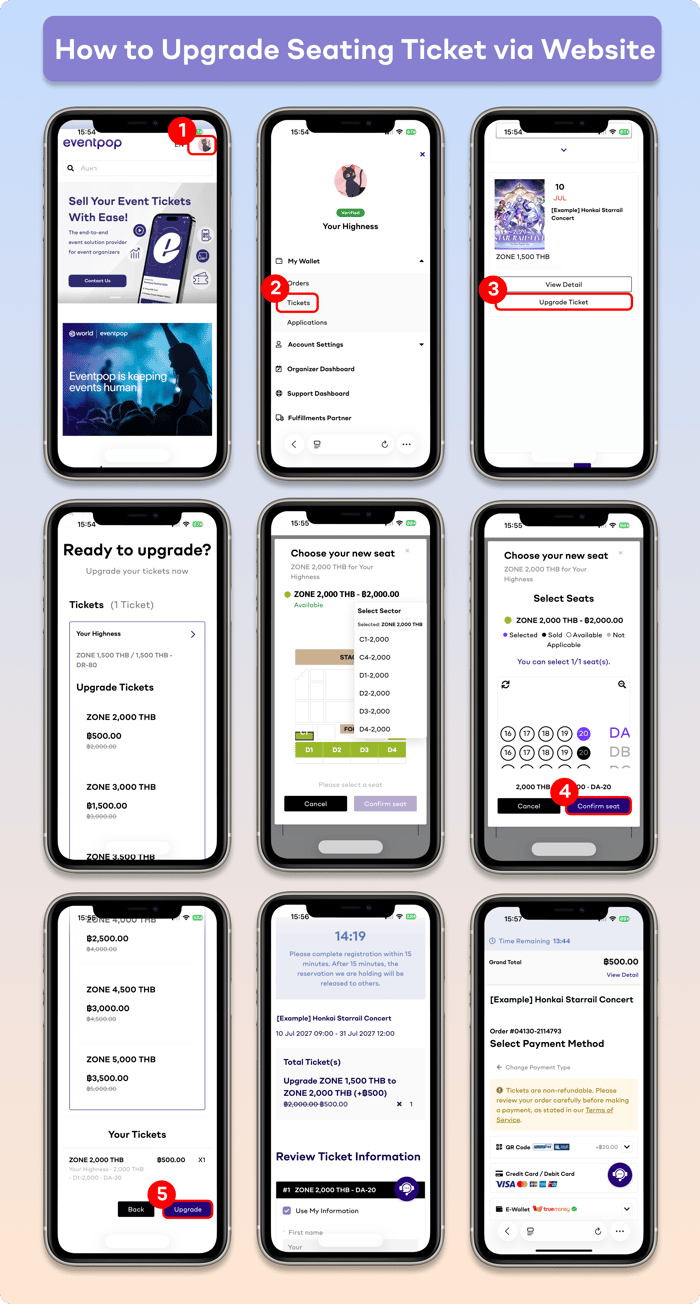
- Go to “My Wallet” and select “Tickets”.
- Select the ticket you wish to upgrade and click “Upgrade Now!”.
- Review the ticket holder’s name, current zone, and seat. Then, select your new zone and seat. The system will display the price difference for the upgrade (excluding other fees).
- Select your preferred zone and seat, then click “Confirm Seat”.
- Review the ticket holder’s name, new zone, and seat. If the information is correct, click “Upgrade” to proceed.
- The ticket holder’s information cannot be changed. Review the order details and click “Confirm” to proceed to payment.
- Select your preferred payment method. Once payment is completed, you can view your upgraded ticket under the menu “Tickets”.
Remark
- If you select to complete the payment for the former order via Payment Plan, all installments must be completed before upgrading the ticket.
- If you have more than one eligible ticket to upgrade in your account, you can select and upgrade multiple tickets in the same order.
- The upgrade price difference excludes payment processing fees and other fees (if applicable).
- Once the ticket has been upgraded, the former ticket cannot be used to attend the event under any circumstances.
- If you purchase Ticket Protect service with your former order, we recommend purchasing Ticket Protect service again for the upgraded order to ensure the Ticket Protect service provides coverage for the full ticket price.
How to Upgrade Seating Ticket
A seating ticket upgrade is available if the event organizer allows customers to change their zone or seat through the system. The ticket upgrade can only be made to a higher-priced zone or seat. To proceed with this, please follow the steps below:
How to Upgrade Seating Ticket via Application
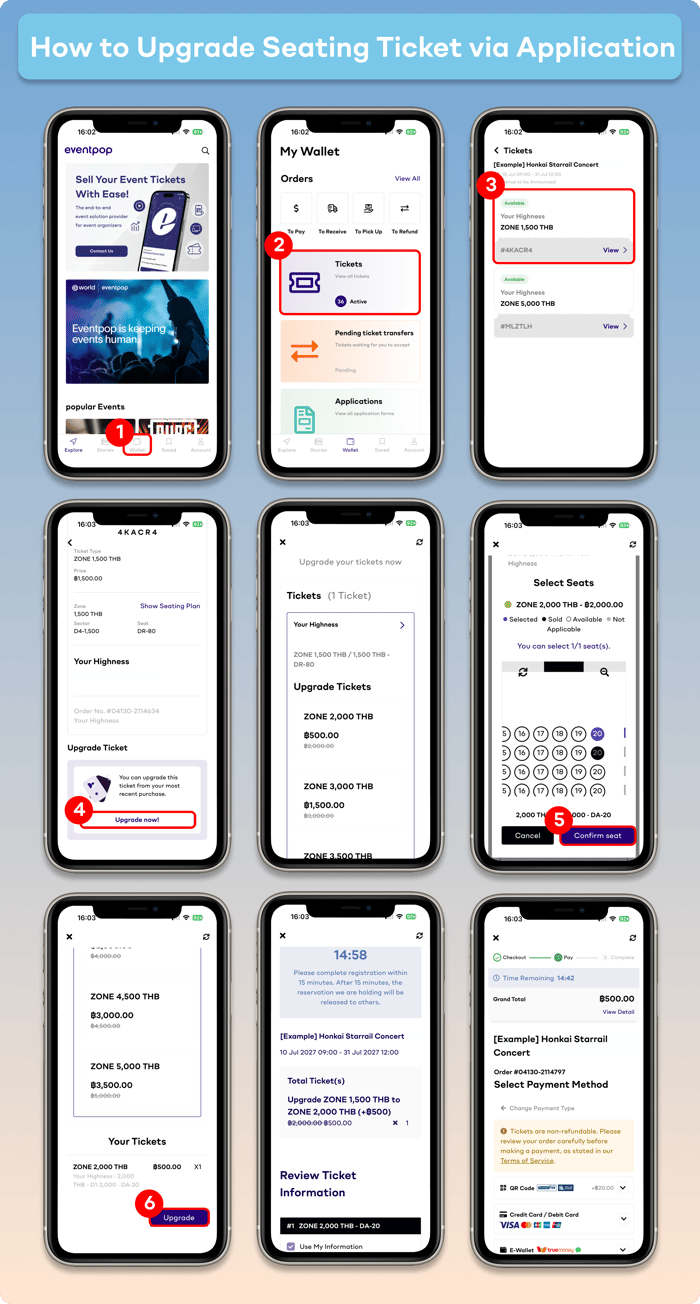
- Go to “My Wallet” and select “Tickets”.
- Select the ticket you wish to upgrade and click “Upgrade Now!”.
- Review the ticket holder’s name, current zone, and seat. Then, select your new zone and seat. The system will display the price difference for the upgrade (excluding other fees).
- Select your preferred zone and seat, then click “Confirm Seat”.
- Review the ticket holder’s name, new zone, and seat. If the information is correct, click “Upgrade” to proceed.
- The ticket holder’s information cannot be changed. Review the order details and click “Confirm” to proceed to payment.
- Select your preferred payment method. Once payment is completed, you can view your upgraded ticket under the menu “Tickets”.
Remark
- If you select to complete the payment for the former order via Payment Plan, all installments must be completed before upgrading the ticket.
- If you have more than one eligible ticket to upgrade in your account, you can select and upgrade multiple tickets in the same order.
- The upgrade price difference excludes payment processing fees and other fees (if applicable).
- Once the ticket has been upgraded, the former ticket cannot be used to attend the event under any circumstances.
- If you purchase Ticket Protect service with your former order, we recommend purchasing Ticket Protect service again for the upgraded order to ensure the Ticket Protect service provides coverage for the full ticket price.